Design used to require a steep learning curve, a dedicated budget, or hours spent tweaking pixels in complex editing software. In 2026, the creative landscape looks fundamentally different. Canva’s Magic Studio has established itself as an all-in-one, AI-powered creative engine that bridges the gap between raw idea and polished graphic.
Whether you are a small business owner launching a product, a social media strategist creating daily content, or an educator putting together lesson plans, Magic Studio provides a cohesive suite of generative tools built directly into the familiar Canva interface.
This comprehensive beginner’s guide breaks down everything you need to know about Canva AI Magic Studio in 2026: what tools are included, how to use them step-by-step, and how to get maximum impact with minimal friction.
What Is Canva Magic Studio?
Canva Magic Studio is a centralized ecosystem of artificial intelligence tools embedded within Canva. Rather than treating AI as a side feature or requiring separate web apps for text, imagery, and video, Magic Studio brings generative AI directly onto the canvas.
What sets Magic Studio apart in 2026 is contextual brand awareness. Instead of producing generic, disconnected AI outputs, the system reads your brand identity—including your designated fonts, color palettes, tone of voice, and visual rules—before generating a single pixel or word. As a result, initial drafts feel surprisingly tailored and ready for immediate refining.
Core Tools in the Magic Studio Suite
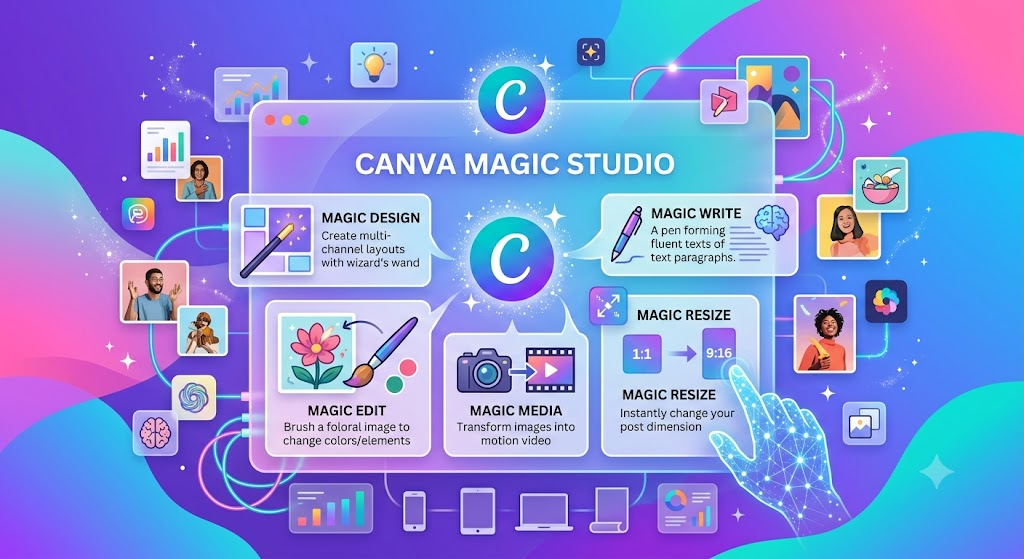
Magic Studio isn’t just a single feature—it’s a collection of complementary tools designed to address every stage of the visual creation process. Here is a breakdown of the primary tools available inside the suite:
1. Magic Design
Magic Design eliminates the intimidating “blank page” syndrome. By typing a plain-language prompt or uploading an initial photo, Magic Design evaluates your intent and generates a selection of complete, tailored layouts.
- Magic Design for Social: Produces multi-page story posts, carousel slides, or ad graphics with pre-set typography and balanced focal points.
- Magic Design for Presentations: Generates full slide decks with logical outline flows, formatted data points, and contextually appropriate slide layouts.
- Magic Design for Video: Assembles video clips, transitions, and text overlays into draft video content from uploaded media or prompts.
2. Dream Lab & Magic Media
For image and video generation, Canva integrates Dream Lab alongside its Magic Media tools.
- Dream Lab: Powered by advanced commercial diffusion models, Dream Lab specializes in hyper-realistic product lifestyle shots, stylized illustrations, and custom visual backgrounds. It includes style-transfer capabilities, allowing you to upload a reference image so new visuals adopt the same artistic aesthetic.
- Magic Media (Image & Video): Lets you turn text prompts into short motion clips (up to 4K resolution) or static graphics, ideal for dynamic social feeds and presentation accents.
3. Magic Switch 3.0
One of the biggest time-savers in the suite, Magic Switch allows you to transform design assets into entirely different formats without breaking your layout structure:
- Format Conversion: Instantly turn a pitch presentation into an executive summary document or blog draft.
- Intelligent Resizing: Scale a single square Instagram post into a vertical Story, a horizontal LinkedIn header, and a printable flyer while automatically adjusting asset positions.
- Layout-Preserving Translation: Translate text across 150+ languages while preserving typography, line wrapping, and spatial balance.
4. Precision Photo Tools: Magic Grab, Magic Expand & Magic Edit
Editing photos previously required specialized layering skills. Magic Studio simplifies complex photo manipulations into point-and-click actions:
- Magic Grab: Detects the main subject in a flat image and isolates it onto an editable layer, allowing you to reposition the object or change the background behind it.
- Magic Expand: Generously extends image borders using AI in-painting to fit challenging aspect ratios without awkward cropping or stretching.
- Magic Edit: Brush over an area of a photo (such as a couch or jacket) and type a prompt (like “change color to navy blue” or “add a coffee cup”) to swap elements naturally.
5. Magic Write
Integrated directly into text frames and Canva Docs, Magic Write serves as an AI copywriting assistant. It can draft compelling headlines, rewrite long-winded paragraphs into concise bullet points, adjust tone, or expand quick notes into full captions. When linked to your Brand Voice settings, it maintains consistent language across all written outputs.
6. Canva Sheets & Magic Charts
For business reporting, Canva Sheets acts as an embedded data sheet within your workspace. Selecting a data range and invoking Magic Charts automatically converts raw numbers into beautifully styled, brand-matched charts and graphs ready for presentations.
Step-by-Step Tutorial: Creating a Campaign from Scratch
To help you get comfortable with Magic Studio, here is a practical workflow that takes a campaign from initial concept to multi-channel deployment in minutes:
Step 1: Set Up Your Brand Kit First
Before generating designs, ensure your Brand Kit is configured in Canva. Upload your brand logo, set primary and secondary color palettes, and select your default typography styles. Magic Studio draws from these rules to ensure generated layouts conform to your brand identity automatically.
Step 2: Generate Core Layouts with Magic Design
- From the Canva home screen, click the search bar or the Magic Studio tab.
- Select your base format (e.g., Instagram Post or Presentation).
- Type a descriptive prompt in the Magic Design search box.
- Weak Prompt: “Post for a coffee shop.”
- Strong Prompt: “Minimalist promotional post for an organic cold brew coffee launch, featuring warm earth tones and modern typography.”
- Review the generated drafts, select the structure you prefer, and click Apply Brand Kit to align colors and fonts with your brand.
Step 3: Refine Visuals and Photo Elements
- Swap stock photos with custom imagery generated in Dream Lab or uploaded product shots.
- Use Magic Grab if you need to separate your main product from its original background and overlay text behind it.
- Apply Magic Expand if your photo doesn’t quite fill the top or sides of the template layout.
Step 4: Polish Content with Magic Write
- Click any headline or text block and press the slash key (
/) or tap the Magic Write icon. - Ask Magic Write to tighten the copy or generate a call-to-action.
- Select preset tone options such as Professional, Casual, or Persuasive to match your target audience.
Step 5: Repurpose Across Channels with Magic Switch
- Click Magic Switch from the top menu bar.
- Choose Resize and select alternative formats (e.g., LinkedIn Banner, Facebook Post, Story format).
- Review the newly formatted options, make quick visual adjustments, and export or schedule your posts directly through Canva’s Content Planner.
Best Practices for Better AI Results
To get clean, professional results out of Magic Studio, keep these practical principles in mind:
| Practice | Tip for Success |
| Be Specific with Context | State the platform, audience, purpose, and visual style in your prompt. Specific details reduce generic outputs. |
| Use AI as a First Draft | Treat Magic Design and Magic Write as starting points rather than final products. Always spend 2 minutes polishing the layout and reviewing copy. |
| Maintain Visual Breathing Room | Generative tools can occasionally over-pack a layout. Delete extra decorative elements and maintain ample white space around headlines. |
| Choose the Right Tool for the Job | Use Dream Lab for hero images and unique campaign visuals. For standard icons, simple shapes, or common objects, Canva’s standard stock library is faster and conserves credits. |
Canva AI Plans and Pricing Overview
Canva Magic Studio features are accessible across different account tiers:
- Canva Free: Offers basic access to Magic Design and standard Magic Write functionality, with limited monthly AI generation credits.
- Canva Pro: Unlocks full access to the Magic Studio suite, complete Brand Kit integration, expanded credit limits for Dream Lab and video creation, background removal tools, and 1TB of cloud storage.
- Canva Teams & Enterprise: Adds administrative controls, single sign-on (SSO), advanced asset governance, custom Brand Voice guidelines across multiple team members, and enhanced legal protections via “Canva Shield”.
Summary
Canva AI Magic Studio turns complex visual design into an accessible, conversational workflow. By combining rapid layout generation, precise photo editing, and brand-aware copywriting into a single environment, it allows creators and businesses to move from initial idea to finished campaign faster than ever.
By setting up your Brand Kit, mastering targeted prompts, and using AI as an accelerator for your creative vision, you can produce consistent, high-impact visuals for every channel.
Recommended Reading
Continue exploring Canva and content creation with these Skilswave articles:
- 25 Canva Tips Every Affiliate Marketer Should Know
- How to Create High-Converting Pinterest Pins with Canva
- How to Design Professional Lead Magnets Using Canva
- Canva Free vs Canva Pro: Which Should You Choose?
- Best Canva Templates for Bloggers and Affiliate Marketers
- Your One-Stop Canva Learning Hub
Ready to Unlock Canva’s AI-Powered Workflow?
Start experimenting with one Magic Studio feature at a time. As your confidence grows, combine these tools to create faster, maintain a consistent brand, and produce professional-quality content that supports your blogging, affiliate marketing, and online business goals. Explore more Canva tutorials and practical guides in the Skilswave Canva Resource Center.