
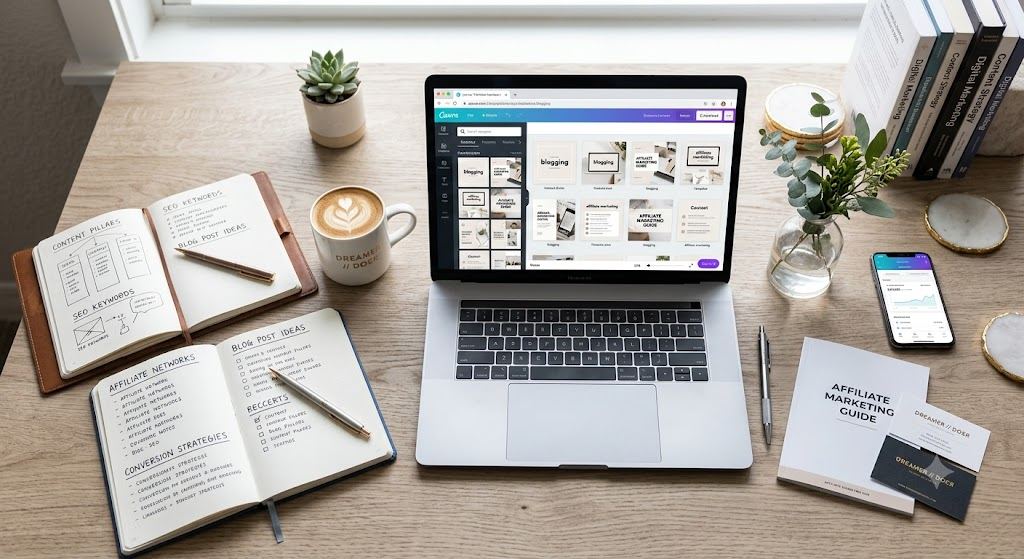
In digital marketing, visual presentation isn’t just about making your content look nice—it is a core engine for audience retention, click-through rates (CTR), and affiliate conversions. Whether you are driving traffic from Pinterest, breaking up long-form text with engaging infographics, or publishing high-converting product comparison charts, high-quality graphics build immediate trust with your readers.
For creators balancing content writing, keyword research, link management, and site performance, building every design asset from scratch is simply not scalable. This is where Canva templates become an indispensable part of your publishing stack.
By utilizing structured, professionally designed templates, you can turn complex data into bite-sized visual hooks, streamline your social media distribution, and establish a cohesive, high-trust brand aesthetic across all channels.
Below is an in-depth guide to the best Canva templates and layout structures for bloggers and affiliate marketers, along with actionable design strategies to maximize your conversions.
Why Visual Design directly Impacts Affiliate Conversions
Affiliate marketing relies heavily on user trust and clear communication. When a visitor lands on your article, their initial impression is formed in fractions of a second.
- Higher Skimmability: Most web readers do not read every word of a 2,000-word post. They scan headings, callout boxes, and images. Well-designed comparison graphics highlight the most critical product benefits immediately.
- Increased CTR on Social Channels: Visual platforms like Pinterest and Instagram rely entirely on eye-catching vertical graphics to drive organic traffic back to your content.
- Reduced Bounce Rates: Breaking up dense walls of text with custom diagrams, quote blocks, and infographics keeps readers engaged longer, sending positive user-experience signals to search engines.
1. High-Converting Product Comparison Tables & Feature Sheets
When readers are evaluating two or three competing products, they want quick, clear answers. Standard HTML tables can often feel rigid or plain, but visual comparison charts created in Canva deliver maximum clarity.
Essential Elements of an Affiliate Comparison Template:
- Product Hero Shot: High-resolution product images or mockups on clean, non-distracting backgrounds.
- Rating & Verdict Badges: Visual elements like star ratings, “Editor’s Choice” ribbons, or “Best Value” callouts.
- Feature Checklists: Side-by-side green checkmarks and red “X” icons for key specifications (pricing, ease of use, customer support, money-back guarantees).
- Call-to-Action (CTA) Mock Buttons: Prominent button-style graphic blocks (e.g., “Check Current Price”) that signal interactability.
Best Canva Search Terms to Find These Templates:
Product comparison table,Feature comparison chart,Product matrix infographic,Buying guide table
2. Pinterest Pin Templates Optimized for High CTR
Pinterest remains one of the largest organic traffic drivers for niche bloggers and affiliate marketers. Because Pinterest is a visual discovery engine, your pin design determines whether a user scrolls past or clicks through to your review post.
Ideal Dimensions & Best Practices:
- Aspect Ratio: Standard 2:3 vertical aspect ratio (1000 x 1500 pixels) to maximize feed real estate.
- Bold Headline Typography: High-contrast sans-serif or bold serif fonts that remain readable on small mobile screens.
- Text Overlay Containers: Semi-transparent background cards or solid color blocks placed behind headline text to ensure legibility over photos.
- Sub-Headlines with Intent Keywords: Short secondary text targeting problem-solving phrases (e.g., “Step-by-Step Guide,” “Honest Review,” “Before You Buy”).
- Brand Watermarks: Subtle website URLs or logo marks near the bottom edge for brand recognition and attribution protection.
Top Pinterest Template Layouts:
- The “Listicle/Roundup” Layout: Features 3–4 stacked image cutouts showing different products featured in the guide.
- The “Problem-Solution” Layout: Uses a split-screen background with a prominent text card centered across the middle.
- The “Infographic Pin” Layout: A tall, step-by-step visual workflow ideal for “How-To” tutorials and software walk-throughs.
3. Lead Magnet & PDF Opt-in Templates
Building an email subscriber list is crucial for long-term affiliate revenue. Rather than relying on simple text opt-ins, offering high-value downloadable resources—such as checklists, buyer’s guides, or cheat sheets—dramatically increases subscriber conversion rates.
Recommended Lead Magnet Templates:
- Ebook & Guide Cover Templates: Professional, publication-style covers featuring clean titles and minimalist author branding.
- Checklists & Resource Worksheets: Cleanly structured, single-page or multi-page templates with editable checkboxes, bullet points, and highlight sections.
- 3D Digital Product Mockups: Canva layout frames that display your digital lead magnet as a 3D book, tablet, or device screen. Placing these mockups on your landing pages or inline opt-in forms creates tangible value for potential subscribers.
4. Blog Post Featured Images & Header Banners
Your featured image sets the visual tone for the entire article. Standard stock photos can feel generic, but custom featured image templates elevate your content and make social media shares look clean and authoritative.
Key Features of Great Blog Header Templates:
- Consistent Dimensions: Standard 1200 x 630 pixels (which aligns perfectly with Open Graph social preview standards for Twitter/X, Facebook, and LinkedIn).
- Balanced Focal Points: Ample negative space to prevent headlines from overlapping main background visuals.
- Brand Color Accents: Consistent application of your site’s core color palette.
5. Educational Infographics & Data Visualizations
Complex affiliate reviews—such as technical software breakdowns, financial tool reviews, or hosting comparisons—benefit immensely from visual summaries. Infographics synthesize dense information into clear graphics that are highly shareable and frequently linked to by other sites.
Effective Infographic Formats for Marketers:
- Process & Timeline Infographics: Perfect for showing a multi-step onboarding process or workflow setup.
- Pros & Cons Visuals: Two-column templates with green and red accent containers for quick evaluation.
- Stat & Percentage Highlights: Large typography cards emphasizing key metrics, speed test results, or ROI figures.
How to Customize Canva Templates to Match Your Brand Aesthetic
Using templates doesn’t mean your site needs to look like everyone else’s. Customizing standard templates to match your brand identity ensures visual recognition across your entire content network.
Step 1: Establish Your Core Brand Kit
Set up your Canva Brand Kit with your exact site branding assets:
- Color Palette: Choose 2 primary colors (e.g., deep slate blue and crisp white) and 1 high-contrast accent color for buttons or highlights (e.g., emerald green or warm coral).
- Typography Hierarchy: Define a primary heading font (e.g., Montserrat or Playfair Display) and a readable body font (e.g., Inter, Lato, or Open Sans).
- Logo Variations: Keep primary, monochrome, and icon-only versions of your logo ready for fast placement.
Step 2: Use “Style Shuffle” for Quick Customization
When you open a new template in Canva, navigate to the Brand Kit panel on the left sidebar and click your brand color palette. Canva will automatically recolor the entire template to match your brand hues. Click again to shuffle color positions until you reach the right balance.
Step 3: Replace Generic Stock with Product-Specific Assets
Swap out generic stock photos with real screenshots, interface close-ups, or unboxing images. Authentic visuals significantly increase trust compared to overly polished stock photography.
Summary Checklist for Marketers
| Asset Type | Primary Use Case | Recommended Canva Search Terms |
| Comparison Tables | Product reviews & vs. articles | Product comparison table, Matrix chart |
| Pinterest Pins | Driving viral traffic from Pinterest | Pinterest pin mockup, Blog graphic 1000x1500 |
| Lead Magnet Mockups | Email subscriber generation | Ebook cover mockup, Worksheet lead magnet |
| Blog Headers | Site featured images & social previews | Blog featured image, Article header banner |
| Infographics | Backlink generation & deep reviews | Process infographic, Pros and cons chart |
Final Thoughts
Investing time into clean visual design yields compounding returns. By leveraging pre-built Canva templates and tailoring them to your brand, you streamline your visual content creation workflow, improve site metrics, and present your readers with clear, high-trust visual information.
Related Articles
Continue learning with these Skilswave resources:
- 25 Canva Tips Every Affiliate Marketer Should Know
- Canva AI Magic Studio: Complete Beginner’s Guide
- How to Create High-Converting Pinterest Pins with Canva
- How to Design Professional Lead Magnets Using Canva
- Canva Free vs Canva Pro: Which Should You Choose?
- Your One-Stop Canva Learning Hub
Start Building Your Canva Template Library Today
Professional design doesn’t require years of graphic design experience—it requires the right systems. Start by choosing a few core Canva templates for your blog, social media, and lead magnets. Customize them with your brand colours, fonts, and messaging, then reuse them consistently to create a recognizable visual identity that supports your content and affiliate marketing goals.
Want to learn more? Explore the Skilswave Canva Resource Center for step-by-step tutorials, practical design tips, and marketing resources that help you create content with confidence