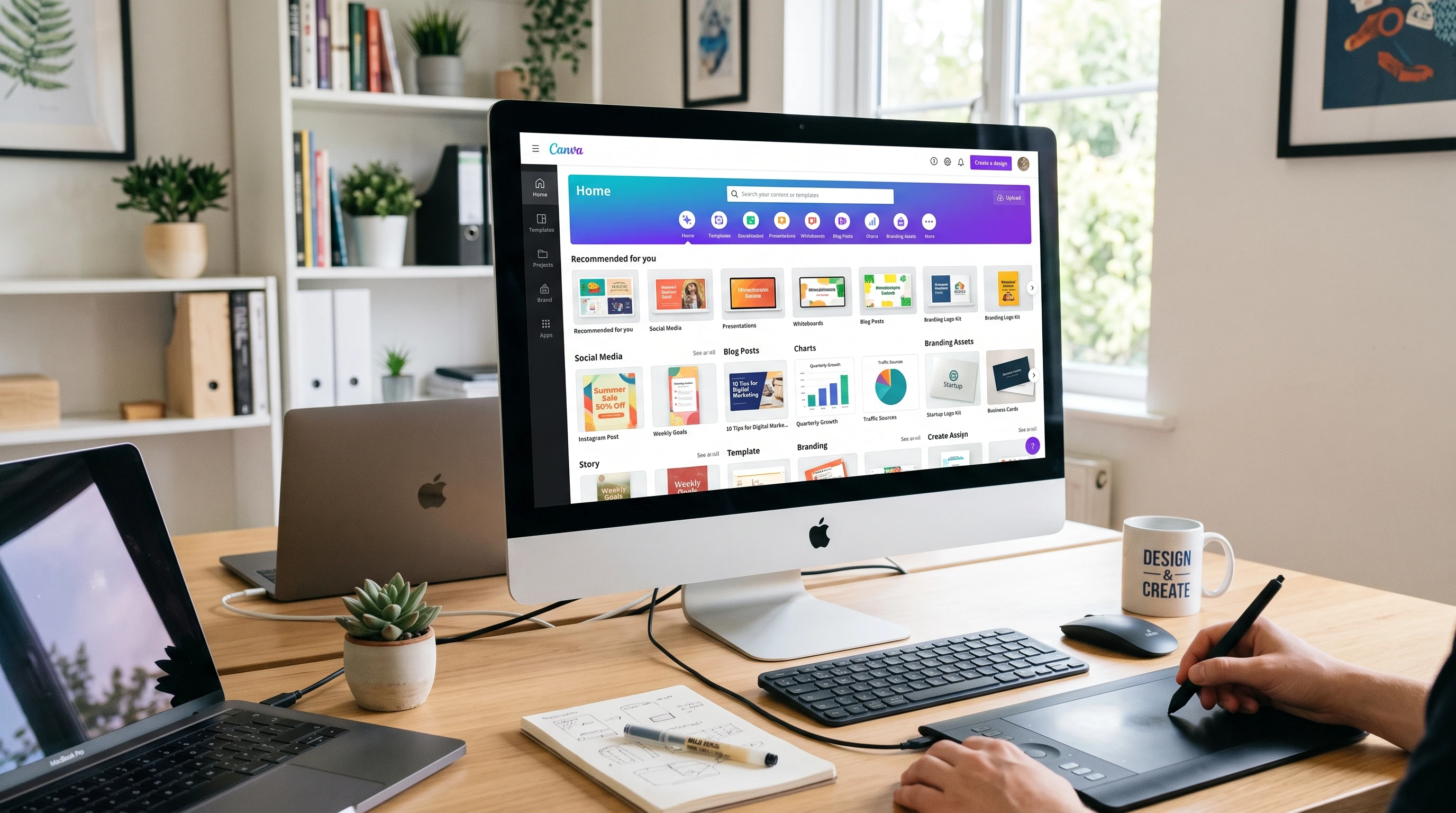
 Canva has become one of my favorite tools for creating professional graphics, blog images, social posts, videos, and more. As an affiliate marketer, good visuals help make my offers look more trustworthy and help increase clicks, sign-ups, and sales. I’ve learned plenty of practical tips through trial and error, and these have saved me lots of time while making my brand more consistent across every channel.
Here, I’m sharing 25 Canva tips that I wish I’d known sooner. While these tips are especially helpful for affiliate marketers, anyone working online can use them to create stronger visuals, attract attention, and get more conversions.
Get Your Branding Right from the Start
Consistent branding builds trust with people who see your content. Canva makes it easy to keep your style on track, which is really important if you want your audience to recognize your content right away.
- Create a Brand Kit: Build a brand kit with your logo, main colors, favorite fonts, and any specific icons or graphics. This keeps your look consistent everywhere, from your website to your Pinterest pins.
- Limit Your Color Palette: Stick to three to five core brand colors. Using too many colors can make a design confusing and less focused. Canva lets me save colors in my brand kit for fast access.
- Choose Readable Fonts: Pick just one or two main fonts for all your designs. I often use combinations like “Poppins” and “Lato” for clarity and readability. Keeping fonts consistent helps build recognition.
- Pay Attention to Spacing and Alignment: Good use of white space, margins, and proper alignment keeps content easy to read. Canva’s alignment tools help me get the spacing right fast.
Speed Up Your Design Workflow
As an affiliate marketer, I create content often and need to produce new graphics quickly. Canva offers lots of shortcuts to help me work faster.
- Use Canva Templates: I start with Canva’s readymade templates for blog posts, social posts, lead magnets, and more. I customize them just enough so they fit my brand, but starting with a template saves me hours every week.
- Duplicate and Resize Designs: Once I finish one version, Canva’s “Magic Resize” tool duplicates and resizes my design for Facebook, Instagram, LinkedIn, Pinterest, or any other platform. This keeps my brand consistent across every channel.
- Organize Work in Folders: I create folders for blog images, pins, Facebook posts, lead magnets, and YouTube thumbnails. This makes it much easier to find past designs and repurpose them.
- Save Custom Templates: If I make a blog header or CTA banner I really like, I save it as a template so I can reuse the structure but update the photos, text, or colors.
Create Visuals That Actually Convert
Every graphic I create should help my visitors understand my offer and take action. This focus on clear, conversion-focused design has made a big difference in my results.
- Design With Your Audience in Mind: I always ask who I’m creating for; beginners, business owners, students, or another group. Their preferences should shape everything from color choice to size of text. For example, younger audiences may like bolder colors and modern fonts, while older readers prefer simple, classic designs.
- Make Social Posts Easy to Skim: Use large headlines, icons, and clear blocks of color. I avoid overloading designs with too much text or too many elements.
- Use High Quality, Relevant Images: I pick sharp stock photos or use Canva’s built-in photos, mockups, and clean illustrations. Blurry or generic images turn people away.
- Build Clear Call-to-Action Graphics: I create buttons or banners that stand out and say exactly what I want; things like “Download Now,” “Get the Guide,” or “See the Comparison.” A clear CTA increases conversion rates.
- Design Featured Blog Images: Every blog post gets a custom feature image with a strong title, bold colors, and a visual linked to the topic. This draws in more clicks from social media and within my blog.
- Make Pinterest Pins: Canva makes pin design easy. I use vertical layouts (1000 x 1500 px), bold headlines, and relevant visuals. Pinterest is still a powerful source of affiliate traffic.
- Create Eye-Catching YouTube Thumbnails: For each video, I design a thumbnail that includes expressive images and high contrast text. I’ve noticed my video click-through rate improves a lot with better thumbnails.
- Use Comparison Charts: I create clean tables or charts comparing products or services. Clear comparisons help people understand their options quickly and choose the right product through my affiliate links.
Make Lead Magnets That Grow Your List
Lead magnets are one of my main strategies for building an email list. Canva helps me design freebies that attract more subscribers.
- Create Printables and PDFs: I design checklists, cheatsheets, and miniguides and offer them as downloadable PDFs. Canva’s built-in templates give my lead magnets a polished, professional edge. Consider adding engaging titles and colorful visuals to make your PDFs more engaging and likely to be shared.
- Design Workbooks and Planners: Interactive PDFs get shared more often and increase involvement. Canva offers page templates for planners, recipes, and more, which are easy to customize for my audience. I often include short activity prompts or worksheet pages to help the reader apply what they learned.
- Make Mockups to Show What’s Inside: I use Canva’s device mockups to show my guides, eBooks, and printable packs on phones, tablets, or desktops. This visual preview increases interest and conversions.
- Build Email Opt-In Covers: It’s a good idea to craft a distinct cover for each opt-in, making it visually appealing and on-brand. Consistency in design between the opt-in form and the freebie itself adds a layer of professionalism.
Put Canva’s Advanced Features to Work
Once I got more comfortable with Canva, I started taking advantage of its more powerful tools. These extra features help boost the quality of my visuals and save me even more time.
- Use Canva’s AI Magic Studio: I let Canva generate images, remove backgrounds, develop presentations, and even draft copy for certain designs. It speeds up my workflow so I can focus more on strategy and less on manual edits.
- Remove Backgrounds Instantly: With one click, I edit out the background of product photos or profile images. The background remover tool helps create clean, focused banners and thumbnails.
- Add Icons for Clarity: Canva offers a huge library of icons. I stick to one style in each project so my designs look clear and unified.
- Use Frames and Smart Mockups: Presenting products as if they’re on screens (like laptops, tablets, or phones) makes them look more polished than basic screenshots.
- Build Slide Decks for Webinars: Where I need to deliver a presentation or minicourse, Canva’s slide-building tools and templates help deliver a professional impression. You can export slides as PDFs too.
- Animate Graphics for Social Media: Animated text or elements make your posts pop and draw more attention on busy social feeds. Canva offers easy animation options for headlines and graphics alike.
Export, Share, and Optimize Your Graphics
Finishing a design is only half the job. Making sure my graphics look sharp and load quickly is just as important. I also double-check how graphics appear on mobile devices, since most affiliate traffic comes from phones or tablets these days. A quick preview on various screens helps catch layout issues before publishing.
- Export in the Right Format: I export graphics as PNG for online images with transparent backgrounds, JPG for photos, PDF for guides, and MP4 for short videos or animated GIFs. Using the correct file type keeps images sharp and loads fast for readers.
- Compress Images for Web Use: Before uploading to my website or email, I use Canva’s export quality settings or a free online image compressor. This reduces file size and keeps my site fast. Try using the “Preview Quality” setting if you want to see how images will look before final export.
- Use Canva’s Sharing Tools: Canva allows sharing links directly with clients or teammates for quick feedback, or sharing designs straight to social networks. This saves time and keeps your workflow simple.
Design Everything with Conversion in Mind
Every design should make it obvious what the viewer should do next. I always ask myself a few questions before I finalize anything:
- What’s the first thing I want visitors to notice?
- What action do I want them to take?
- Does the design make my message clear?
- Is there a CTA that stands out?
- Does the color scheme support the main message and not distract?
- Will my design look good both on desktop and mobile screens?
This mindset helps my graphics not just look good, but work hard for my affiliate marketing goals. Remember to test different versions to see what connects best with your audience and adjust your designs based on the results.
Common Questions and Troubleshooting Canva for Affiliate Marketing
What if I’m new to Canva?
Start with free templates and experiment with customizing the text and colors. Over time, try adding new features like icons, mockups, or the brand kit. Canva’s tutorials and Help Center make it easier to learn. You can also find free video walkthroughs online to follow along step by step. Don’t worry about perfection at first; just get a feel for the tools.
I’m short on time. How do I work faster?
- Batch-create all of a week’s graphics in one session; this minimizes the mental effort of switching tasks and gets you in a creative flow.
- Save your go-to designs as custom templates so you don’t start from scratch each time.
- Keep organized folders for each social media platform or campaign, making it easier to reuse past successful content with slight tweaks.
How do I make my designs look more unique?
Swap out Canva’s stock images for your own photos or screenshots. Change up color filters, resize icons, and experiment with different layouts until your graphics match your voice and style. Use your brand elements consistently and sprinkle in custom icons, branded illustrations, or occasional hand-drawn elements for extra uniqueness.
Is Canva Pro worth it?
If you work with graphics often or value features like Magic Resize and background remover, Canva Pro saves a lot of time. The expanded stock photo and video library is worth it if you create lead magnets, pins, or social posts regularly. Try the free version first and upgrade if you need more flexibility. For teams, Canva Pro’s sharing and collaboration features also make it easier to keep groups on the same design page.
Next Steps for Better Canva Design as an Affiliate Marketer
Good design can make your recommendations more appealing and trustworthy while building a real connection with your audience. Every affiliate marketer should use Canva features that match the speed and consistency required in this business. By keeping your visuals sharp and on-brand, you’re helping your audience feel confident about the products or services you suggest.
Here’s how I’d get started:
- Set up your brand kit and save time by sticking to it for every design.
- Pick a Canva template or two and customize them for your main posts and pins; having go-to styles lets you focus on your messaging, not just design choices.
- Add focused lead magnets or bonus downloads, using mockups for higher perceived value.
- Keep a clear call to action front and center in every graphic. Don’t be afraid to experiment with color, text, and placement to see what gets the most response.
As you get more comfortable and learn what works for your audience, keep updating your templates and experimenting with new features. Design doesn’t have to be complicated or overwhelming, especially with Canva’s tools, which are made for everyone, not just experts. Stay open to feedback from your audience and be willing to refine your graphics and offers based on what you see working best. You’ll notice in time that strong, consistent visual branding builds authority and trust, which helps boost your conversions even more.
If you want to keep sharpening your design skills, check out Canva’s free learning resources or compare the Pro plan to see if the extra features fit your workflow. With the right approach and steady improvements, you’ll soon create graphics that help your affiliate marketing business stand out and perform better. Stay curious, try new layouts, and most importantly, be consistent—your audience will recognize and trust your style in the long run.
Recommended Reading
- Canva Free vs Canva Pro: Which Should You Choose?
- How to Create High-Converting Pinterest Pins with Canva
- How to Design Professional Lead Magnets Using Canva
- Canva AI Magic Studio: Complete Beginner’s Guide
- Best Canva Templates for Bloggers and Affiliate Marketers
- Your One-Stop Canva Learning Hub
Ready to take your Canva skills to the next level?
Explore our Canva tutorials, templates, and design resources to learn how to create graphics that support your content and marketing goals. If you’re considering Canva Pro, compare its features with the free version to see which option best fits your needs.