
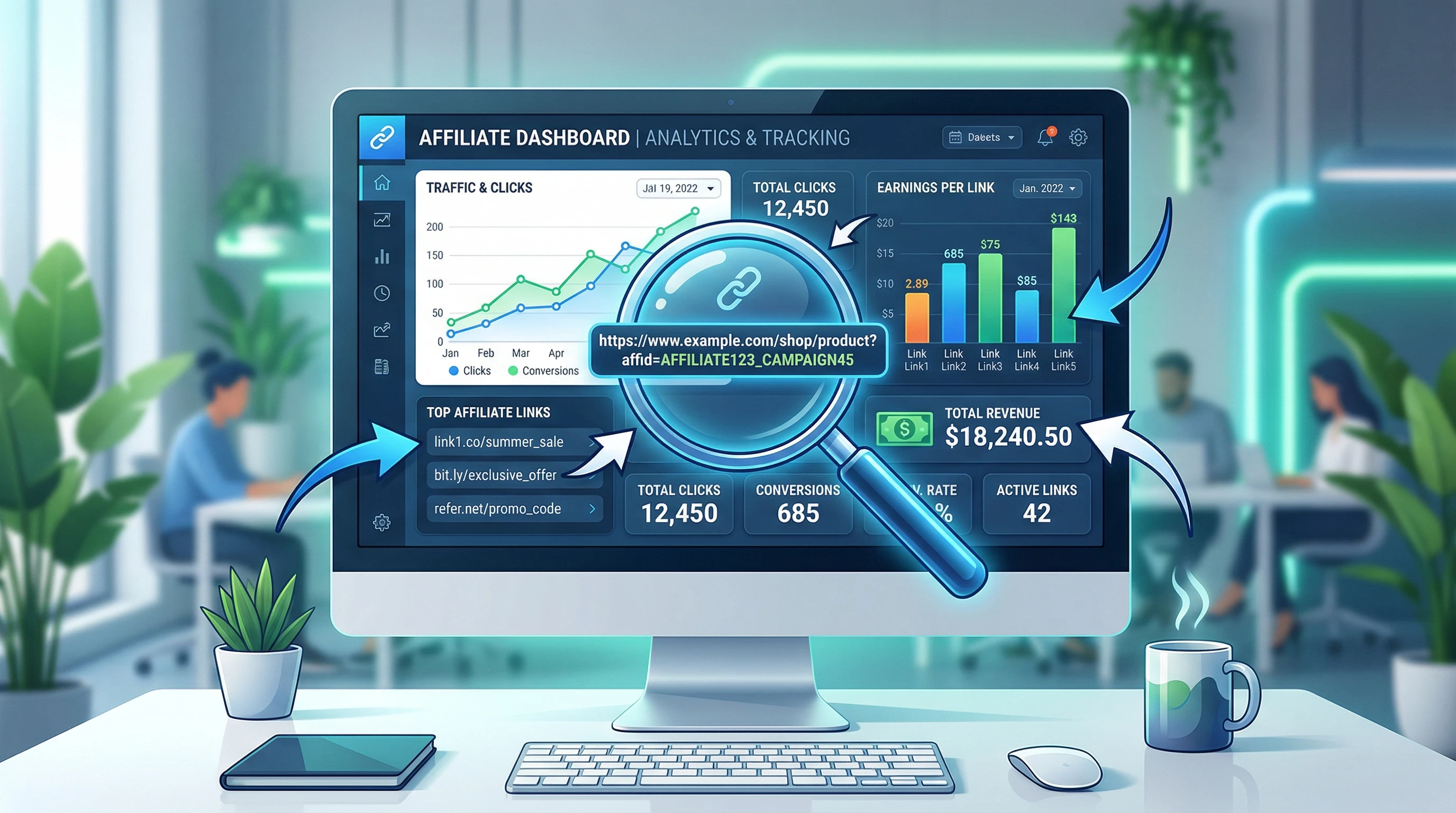
 Getting a clear picture of how your affiliate links perform is super important if you want to maximize your online earnings. Google Analytics, when set up correctly, makes affiliate link tracking easier and gives you the power to spot which links bring in clicks, leads, and conversions. The setup process can feel intimidating if you’re just getting started, but it’s totally doable with a little patience.
If you’re tired of guessing which affiliate links are working and want solid data to make better decisions, affiliate link tracking is absolutely worth the time. You’ll quickly see which content drives the most clicks and which affiliate partners to focus your efforts on.
In this practical guide, I’m breaking down how you can set up affiliate link tracking with Google Analytics, step by step and without getting lost in technical jargon. Whether you use Amazon Associates, ShareASale, or another affiliate network, these same steps apply. Here’s how to get started so you can finally understand your affiliate performance.
Step 1: Set Up Google Analytics on Your Website
You need Google Analytics tracking installed on your website before you can track affiliate links. If you’re using WordPress, you can add your Analytics tag with a plugin like Site Kit or manually in your site’s header. On other platforms like Squarespace or Wix, just paste your Analytics tracking code into the appropriate settings.
- Make sure you’re using Google Analytics 4 (GA4); it’s the latest version and gets all the new features.
- After creating a GA4 property and adding the tag to your site, visit a page and check the real-time reports to make sure it’s working. If your visit shows up, you’re good to go!
Quick Troubleshooting:
- If you don’t see data in Google Analytics, double check that your tag is published live on your site.
- Clear your cache or try an incognito browser tab when testing.
Step 2: Choose Your Affiliate Link Structure
Affiliate links come in all shapes and sizes. Some are pretty, some are messy, and others get “cloaked” with a tool to make them easier to manage. Understanding your link structure makes tracking much less complicated.
- If you use a cloaking plugin like Pretty Links or ThirstyAffiliates, your affiliate URLs might look like yourwebsite.com/go/product or yourwebsite.com/recommend/brand.
- Uncloaked links might just point straight to the affiliate partner, including parameters or ID codes.
Take a minute and jot down the pattern your affiliate links follow. This helps in the next setup step.
Step 3: Set Up Click Tracking with Google Tag Manager
Google Tag Manager (GTM) is a free tool from Google that makes tracking website events way more flexible. You can set up tracking for any affiliate link, and there’s no coding required.
Here’s how I do it:
- Create a GTM account (at tagmanager.google.com) and add the GTM container code to your website (instructions are provided inside GTM).
- In GTM, create a Trigger:
- Choose Trigger Type: Just Links
- Set the trigger to fire on some link clicks (not all)
- Define the rule, for example, Click URL contains /go/ (or another pattern you use for affiliate links)
- Create a Tag for Google Analytics 4 Event:
- Tag Type: Google Analytics: GA4 Event
- Pick your GA4 Configuration tag
- Event Name: affiliate_click
- Event Parameters: You can send things like {link_url}, {page_path}, etc.
- Connect this Event Tag to the Trigger you set up above
- Test the setup in GTM’s Preview mode. Click some affiliate links and check if the event fires.
- Publish your changes in GTM when you’re happy with the test results.
Pro Tip:
If you have a lot of different link structures, set up multiple triggers for each kind of affiliate link to keep your data organized.
Step 4: Check Affiliate Link Events in Google Analytics 4
Once GTM is sending affiliate click data to GA4, you’ll want to check that the events are rolling in.
- In Google Analytics 4, look under Reports > Engagement > Events for your affiliate_click event.
- Click into the event to see details; these might include the link URL clicked and page path.
It’s really handy to see which articles or pages drive the most clicks, so you can focus your content efforts there.
Step 5: Create Custom Reports to Track Link Performance
The real magic of tracking comes when you build out custom reports in GA4. Building these reports not only highlights your best affiliate opportunities but also lets you make smart decisions for your content strategy.
Custom Exploration:
- Open the Explore tab in GA4
- Start a Blank Exploration
- Add your affiliate_click event as a metric
- Add dimensions like Page path, Event parameter: link_url, or Source/Medium
- Sort and filter to see which links get the most love!
Bonus Analytics Insights:
- Track affiliate link clicks by specific traffic sources, like organic, paid, or social
- Compare how different affiliate programs perform against each other
- Spot pages with high traffic but few clicks to see where you can optimize
- Follow up on seasonal spikes and trends to further refine your affiliate strategy
Troubleshooting Common Issues
Affiliate Clicks Not Showing Up?
- Double check your GTM triggers; make sure the link criteria match your affiliate URLs exactly.
- If links open in a new tab, make sure GTM settings cover “All Link Clicks.”
- Wait a bit; sometimes GA4 event reports appear with a slight delay.
Events Showing in GTM but Not GA4?
- Make sure your GA4 tag is set up correctly and matched to the right property.
- Double check event name spelling; it must match exactly in your reports.
Too Many or Too Few Clicks?
- Check if your triggers are too broad or too specific. Adjust as needed so only affiliate links fire events.
Best Practices for Reliable Affiliate Link Tracking
- Always document the pattern of affiliate links you’re tracking and update GTM if you add new affiliate networks.
- Test all changes with GTM’s Preview before publishing.
- Review your Google Analytics data regularly so you spot issues early.
- If you add new plugins (link shorteners, etc.), recheck your triggers; they might need an update.
- Consider keeping a spreadsheet log of your tracked links, GTM trigger rules, and any changes made; this helps you stay organized and makes troubleshooting much quicker.
Consistent tracking helps you know which content and strategies are paying off, making it much easier to grow your affiliate income.
Questions & Quick Tips
Can I track affiliate link clicks without GTM?
It’s possible by using custom JavaScript, but GTM is safer for most people. Plugins can sometimes help, but they may not send the click data to Google Analytics in a super detailed way.
How do I track outbound clicks for all external links?
In GTM, set a trigger for Click URL that “does not contain” your site domain. This picks up all outbound links, not just affiliates, so filter your reports accordingly for more accurate data.
Can I track affiliate conversions (sales)?
Usually, affiliate sales complete on your partner’s website, so you can’t track purchases inside your own Analytics. Check if the affiliate network provides postback pixels or supports conversion data; sometimes there are workarounds, so read your affiliate network documentation carefully and reach out to their support for info.
Getting the Most from Your Tracking Setup
Tracking affiliate link performance in Google Analytics helps you do more of what works and less of what doesn’t. By combining Tag Manager, custom events, and GA4’s reporting tools, you get a deeper look at your content’s earning power. Try running regular reports and see what trends jump out; maybe it’s certain topics, page types, or even places you drop your links on the page.
- Install GA4 and Tag Manager, and make sure tracking works.
- Set clear triggers for affiliate link clicks in GTM.
- Publish your changes and review your data in GA4’s Events and Explorations.
- Update your triggers as you add new affiliates or change link structures.
- Revisit your reports at least monthly to spot new trends and make small tweaks for continual improvement.
Once your system is up and running, all your future affiliate marketing decisions are backed by real data. Got questions or need more help? Drop them in the comments below!